Category: Websites

  • Selecting Color Schemes for Your Website

    Selecting Color Schemes for Your Website

    I remember sitting in my old agency cubicle, staring at a client’s screen while a senior designer droned on about “psychological color theory” and “chromatic harmony” as if they were reciting ancient scripture. They were trying to sell a $5,000 branding package just to pick a few shades of blue, and frankly, it felt like a total racket. You don’t need a massive budget or a degree in fine arts to nail your website color schemes; you just need to understand how colors actually behave when they hit a screen. Most of the “expert” advice out there is just noise designed to make you feel like you can’t do this on your own.

    I’m not here to give you a lecture on color wheels or overwhelm you with jargon that sounds fancy but means nothing. Instead, I want to show you how to pick a palette that looks professional, stays readable, and actually reflects who you are. We’re going to skip the hype and focus on practical, real-world combinations that work for small businesses. My goal is to help you build a digital space that feels intentional without costing you a fortune.

    Table of Contents

    Using Color Psychology in Web Design Without the Hype
    Using Color Psychology in Web Design Without the Hype

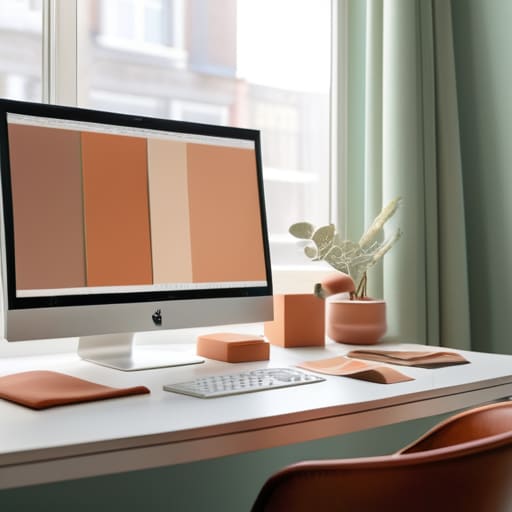
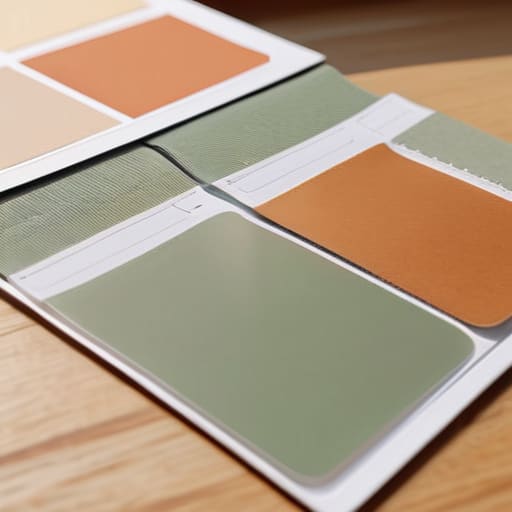
    When you start looking into color psychology in web design, it’s easy to get sucked into a rabbit hole of “blue means trust” or “red means urgency.” While those associations exist, don’t let them paralyze you. You aren’t trying to perform a psychological experiment on your visitors; you’re just trying to set a mood that feels right for your brand. If you’re building a site for a meditation coach, a bright neon yellow is probably going to feel jarring, regardless of what some textbook says. My rule of thumb is to pick a base color that feels like your brand’s personality and then let the rest of the palette support it.

    The real secret isn’t about finding the “perfect” emotion, but about making sure your choices actually work in practice. This is where things like contrast ratios for readability become much more important than the actual meaning of the color. A beautiful, moody palette is useless if your visitors are squinting to read your text. Instead of chasing fleeting UI design color trends, focus on creating accessible color combinations that stay legible across different screens and lighting conditions. Keep it functional, keep it readable, and the “vibe” will take care of itself.

    Finding Complementary Color Palettes on a Tiny Budget

    Finding Complementary Color Palettes on a Tiny Budget

    You don’t need to hire a high-end agency to find complementary color palettes that actually look professional. I used to think you needed expensive design software to get this right, but honestly, there are plenty of free tools that do the heavy lifting for you. Sites like Adobe Color or Coolors are lifesavers; they allow you to plug in a single shade you love and then automatically generate harmonies that work. My personal trick is to start with one “anchor” color—maybe a deep forest green from one of my houseplants—and let the tool suggest the rest.

    The real secret to looking polished on a budget isn’t about finding the most complex combinations; it’s about ensuring your choices are functional. While you’re playing around with new palettes, keep a close eye on contrast ratios for readability. It doesn’t matter how trendy your colors are if your visitors can’t actually read your text. I always keep my notebook of hex codes handy to double-check that my background and foreground colors play nice together. If it’s hard on the eyes, it’s not a good design, no matter how “aesthetic” it looks.

    My Go-To Rules for Keeping Your Site Colors Under Control

    • Stick to the 60-30-10 rule to avoid visual chaos. Use a dominant neutral color for about 60% of your site, a secondary color for 30%, and save that loud, “look at me” accent color for just the remaining 10%—usually your buttons or important links.
    • Test your contrast like your life depends on it. I always check if my text is actually readable against the background; if a user has to squint to read your content, they aren’t going to stay on your site, no matter how pretty the colors are.
    • Don’t let your palette do all the heavy lifting for your brand. Colors are great, but they shouldn’t be a distraction. If a visitor remembers your color scheme but can’t tell what you actually do or sell, you’ve gone too far.
    • Keep a “cheat sheet” of your hex codes. I keep a physical notebook for this, but a simple digital doc works too. Having your exact brand colors ready to go prevents you from accidentally using “almost blue” instead of “your blue” on different pages.
    • Limit yourself to three or maybe four colors max. It’s tempting to use every shade in the rainbow, but a cluttered palette makes a site feel amateurish and overwhelming. Simplicity is almost always your best friend when you’re building on a budget.

    The Bottom Line on Picking Your Palette

    Don’t get paralyzed by choice; pick two main colors that feel right to you and use a neutral background to let them breathe.

    Test your colors on different screens before you commit, because what looks great on my high-end monitor might look muddy on a cheap smartphone.

    Accessibility isn’t a “nice-to-have” feature—if people can’t read your text because the contrast is too low, your beautiful color scheme is basically useless.

    ## A Note on Keeping It Simple

    At the end of the day, your color scheme isn’t there to win a design award; it’s there to make sure your visitors can actually read your content without squinting. If your palette is making your message harder to find, it’s not “aesthetic”—it’s just bad UX.

    Lucia Ferreira

    Final Thoughts on Finding Your Palette

    Final Thoughts on Finding Your Palette.

    At the end of the day, picking a color scheme isn’t about following every single trend you see on Pinterest or trying to mimic a high-end agency’s portfolio. It’s about making intentional choices that serve your visitors. We’ve talked about how to use psychology to set the right mood, how to find palettes that complement each other without spending a dime on expensive software, and how to keep things readable. If you focus on clarity and consistency rather than complexity, you’re already ahead of most people. Remember, your colors should act as a quiet backdrop that supports your content, not a loud distraction that pulls the user away from what you’re actually trying to say.

    I know that staring at a blank screen—or a blank canvas of hex codes—can feel incredibly daunting when you’re just starting out. But please don’t let the fear of making a “wrong” choice keep you from launching. The beauty of the web is that it’s modular; your site isn’t set in stone, and you can always tweak your CSS to find something that feels more like you. You don’t need a massive budget or a degree in fine arts to create a digital space that feels welcoming and professional. Just take it one step at a time, keep it simple, and start building your corner of the internet.

    Frequently Asked Questions

    How do I know if my color choices will actually be readable for people with visual impairments?

    You don’t need to guess if your text is readable; you just need to test the contrast. I always keep a few accessibility checkers bookmarked. The easiest way is to use a tool like WebAIM’s contrast checker. You just plug in your background and text hex codes, and it tells you if you pass the WCAG standards. If the contrast is too low, your readers—especially those with visual impairments—will just bounce.

    Is it better to stick to just two or three colors, or can I use a wider palette without it looking messy?

    I always tell my clients: less is almost always more. If you’re just starting out, stick to two or three core colors. It keeps your site feeling intentional and organized rather than chaotic. You can definitely use a wider palette, but the trick is to treat most of your colors as “supporting actors.” Use one bold color for buttons and keep the rest neutral. It’s about creating a hierarchy, not a rainbow.

    How do I make sure my colors look the same on a phone screen as they do on my laptop?

    This is one of those things that used to drive me crazy when I was first starting out. The truth is, screens are just hardware, and every piece of hardware interprets color differently. To keep things consistent, stick to standard Hex codes and always test your site on an actual mobile device, not just a desktop emulator. A quick tip: check your contrast levels on your phone in bright sunlight. If it’s readable there, you’re winning.

  • Optimizing Images for Your Website

    Optimizing Images for Your Website

    I remember sitting in my old agency cubicle, staring at a client’s site that felt like it was running through molasses. They had hired a “specialist” who charged a small fortune for a suite of complex software, yet the site was still crawling because every single hero image was a massive, uncompressed file. It’s one of those industry secrets that drives me crazy: people think website image optimization requires a massive budget or a degree in computational mathematics. In reality, most of the “pro” tools out there are just overhyped ways to solve a problem that you can actually fix with a little bit of common sense and the right workflow.

    I’m not here to sell you on a monthly subscription or drown you in technical jargon that leaves your head spinning. Instead, I want to show you how to actually make your pages fly using simple, practical methods that work. I’ll walk you through how to shrink those heavy files without making your beautiful photography look like a pixelated mess. Consider this my no-nonsense contract with you: I’m going to give you the straightforward, experience-based steps you need to own your digital space without breaking the bank.

    Table of Contents

    The Real Difference Between Lossy vs Lossless Compression

    The Real Difference Between Lossy vs Lossless Compression

    When you start looking into image compression techniques, you’ll quickly run into two main paths: lossy and lossless. Think of it like packing a suitcase for a weekend trip versus a month-long expedition. Lossless compression is the careful packer; it shrinks your file size by finding more efficient ways to store the data without actually throwing anything away. When you unpack it, the image is exactly as it was. It’s perfect for logos or graphics with sharp lines, but because it’s being so “polite” with the data, the files stay relatively heavy.

    Lossy compression, on the other hand, is a bit more aggressive. It works by permanently discarding some of the visual information that the human eye isn’t great at seeing anyway. This is the most effective way of reducing page weight because you can get those file sizes down to next to nothing. The catch? If you push it too far, your beautiful photography will start looking “crunchy” or pixelated. For most of the photos on a standard website, finding that sweet spot where the file is tiny but the quality still looks crisp is the real secret to a fast site.

    Smart Image Compression Techniques for Every Budget

    Smart Image Compression Techniques for Every Budget

    If you’re working with a tight budget, you don’t need to pay for expensive enterprise software to see real results. For most of my clients, the best starting point is simply using free, reliable tools like TinyPNG or Squoosh to handle the heavy lifting. These tools use clever image compression techniques to strip out unnecessary metadata that bloats your files without making your photos look like a pixelated mess. It’s a small step, but reducing page weight this way can make a massive difference in how your site feels to a visitor on a slow mobile connection.

    Once you’ve shrunk your files, the next step is being smarter about how they actually appear on the screen. I always recommend implementing lazy loading images as a standard practice. Instead of forcing a browser to download every single photo on a long page the moment someone clicks your link, lazy loading tells the site to only fetch images as the user scrolls down to them. It’s a low-effort, high-reward move that keeps your initial load times snappy and prevents your server from working harder than it actually needs to.

    5 Quick Wins to Keep Your Site Snappy

    • Stop uploading images straight from your camera or phone; those files are massive and will choke your page load speeds. Always resize them to the actual dimensions they’ll appear on your site first.
    • Use modern formats like WebP whenever you can. It’s basically the gold standard right now because it gives you great quality without the heavy file size penalty of old-school JPEGs.
    • Don’t forget about your Alt Text. It’s not just for accessibility (though that’s huge); it helps search engines actually understand what’s in your photo so they can show it to the right people.
    • Implement lazy loading if your site has a lot of visuals. This tells the browser to only load images as the user scrolls down to them, which saves a ton of initial bandwidth.
    • Keep a little “image budget” in mind. Before you hit publish, ask yourself if that high-res hero image really needs to be 5MB, or if a 200KB version would look just as good to the naked eye.

    The Bottom Line on Faster Images

    You don’t need expensive software to see results; start by simply resizing your images to the actual dimensions they’ll appear on your screen so you aren’t forcing your visitors to download massive files for no reason.

    Find your sweet spot between quality and file size by using lossy compression for most web photos—it’s the easiest way to slash your page weight without making your beautiful shots look like pixelated messes.

    Make it a habit to optimize your images before you upload them to your CMS, rather than relying on plugins to do all the heavy lifting after the fact.

    ## The Golden Rule of Web Images

    “Don’t let your pursuit of ‘perfect’ visuals turn into a technical bottleneck; your goal isn’t to have the highest resolution file on the planet, it’s to have a site that actually loads before your visitor loses interest.”

    Lucia Ferreira

    Final Thoughts on Keeping Things Lean

    Final Thoughts on Keeping Things Lean

    At the end of the day, optimizing your images isn’t about chasing some perfectionist ideal or mastering complex software; it’s about being intentional with your resources. We’ve covered how to choose between lossy and lossless compression based on what your site actually needs, and we looked at a few ways to squeeze those file sizes down without making your beautiful photography look like a pixelated mess from 1998. Whether you’re using a simple online compressor or a more robust plugin, the goal remains the same: striking that perfect balance between visual quality and a lightning-fast load time. Remember, every kilobyte you shave off is a win for your user experience and your search engine visibility.

    I know that technical maintenance can sometimes feel like a chore that pulls you away from the actual “creative” part of running a business, but I promise it’s worth the effort. Building a corner of the internet is a marathon, not a sprint, and keeping your digital real estate lightweight ensures you aren’t dragging an anchor behind you as you grow. Don’t let the fear of technical details stop you from launching that site or updating your portfolio. You have the tools, you have the knowledge, and now you have a clearer path forward. Go ahead and make your corner of the web fast, functional, and uniquely yours.

    Frequently Asked Questions

    If I compress my images too much, will my site actually look blurry or pixelated to my visitors?

    Short answer: Yes, absolutely. If you push the compression too far, you’ll end up with “artifacts”—those weird, blocky distortions around edges—or a general fuzziness that makes your site look cheap. It’s a balancing act. My rule of thumb is to compress until you notice a tiny bit of quality loss, then back off just a hair. You want your site to be fast, but you don’t want your hard work looking like a low-res thumbnail.

    Is there a specific file format I should prioritize, like WebP, or should I just stick to what I know?

    Look, I get it—sticking to what you know feels safer. But if you want your site to actually perform, you should definitely embrace WebP. It’s become the industry standard for a reason: it gives you that tiny file size without making your photos look like a blurry mess from 1998. I usually use JPEG for complex photography and PNG for graphics with transparency, but for almost everything else? WebP is your new best friend.

    How do I know if my images are actually too big, or if my hosting is just being slow for other reasons?

    It’s a fair question, and honestly, it’s where a lot of people get stuck. The easiest way to tell is to run your URL through a tool like Google PageSpeed Insights or GTmetrix. If they flag “large payload sizes” or “unoptimized images,” you’ve found your culprit. But if your images are tiny and the site still crawls, the issue might be your server’s response time or a clunky plugin. Check the “Time to First Byte” (TTFB)—if that’s high, your hosting is likely the bottleneck.

  • Choosing the Right Fonts for Your Website

    Choosing the Right Fonts for Your Website

    I remember sitting in my old agency cubicle, staring at a client’s screen while they insisted on paying a premium for a custom, hand-drawn typeface that looked beautiful in a portfolio but was completely unreadable on a mobile device. It was a classic case of style over substance, and it drove me crazy. People often treat website font selection like it’s some high-brow art project reserved for designers with massive budgets, but that’s a total myth. In reality, if your text is hard to scan, your visitors are going to bounce before they even realize how “aesthetic” your site is.

    I’m not here to sell you on expensive font licenses or tell you that you need a degree in graphic design to get this right. My goal is to strip away the jargon and give you a practical, no-nonsense framework for choosing typefaces that actually work. We’re going to focus on legibility, hierarchy, and how to pair fonts without making your site look like a cluttered mess. By the end of this, you’ll have the confidence to make smart, functional choices that serve your content—not just your ego.

    Table of Contents

    Serif vs Sans Serif for Web Keeping It Simple

    Serif vs Sans Serif for Web Keeping It Simple

    This is where most people get stuck, but the debate between serif vs sans serif for web doesn’t need to be a headache. Think of serifs—those little “feet” at the ends of letter strokes—as the formal, traditional suit of the typography world. They feel established and classic, which is why you see them in digital newspapers or high-end lifestyle blogs. Sans serif fonts, on the other hand, are the clean, minimalist t-shirts of design. They strip away the extra bits to focus on pure shape, making them incredibly easy to scan on a bright smartphone screen.

    In my experience, you don’t need to choose just one. A really effective way to create a sense of font hierarchy in web design is to pair them. I often suggest using a bold, characterful serif for your big, dramatic headings to grab attention, and then switching to a clean sans serif for your body text. This keeps your site from looking like a wall of monotonous text. Just remember: whatever you pick, make sure the font weight and readability stay front and center. If your readers have to squint, the prettiest font in the world has failed its job.

    Mastering Font Hierarchy in Web Design Without the Hype

    Mastering Font Hierarchy in Web Design Without the Hype

    Once you’ve decided on your basic font styles, you need to figure out how to organize them so your readers don’t get lost. This is where font hierarchy in web design actually matters. Think of it like a newspaper: you have the big, loud headline, a slightly smaller subheader, and then the actual story. If everything on your page is the same size and weight, your visitor’s eyes won’t know where to land first, and they’ll likely just bounce.

    I always tell my clients to embrace typographic scale principles rather than just guessing at sizes. Instead of randomly picking 24px for one header and 21px for another, pick a consistent ratio. If your H1 is 40px, maybe your H2 is 32px and your body text is 16px. This creates a visual rhythm that feels intentional.

    Don’t forget that font weight and readability go hand-in-hand here. You can use a bold weight to make a heading pop, but don’t go overboard with too many different weights. It’s better to keep your selection lean so you don’t accidentally slow down your web font loading performance. Keep it simple, keep it consistent, and your readers will thank you.

    My Golden Rules for Picking Fonts That Don't Break Your Site

    • Limit yourself to two typefaces. I know, it’s tempting to try out every cool font on Google Fonts, but pairing too many styles makes your site look cluttered and amateur. Pick one for headings and one for body text, and call it a day.
    • Test your fonts on a real screen, not just your high-res monitor. A font might look gorgeous in my design software, but if it turns into a blurry mess on a cheap smartphone, it’s useless. Always check the readability on mobile.
    • Don’t ignore line height. You can have the most beautiful font in the world, but if the lines of text are squashed together, nobody is going to read your content. Give your sentences some room to breathe so your readers don’t get eye strain.
    • Prioritize loading speed over “vibes.” Every custom web font you add is another file your visitor has to download. If you load five different weights of a fancy font, your site is going to lag, and people will leave before they even see your work.
    • Stick to high contrast. It sounds basic, but I see people all the time trying to be “minimalist” by using light grey text on a white background. It looks chic for a second, but it’s a nightmare for accessibility. Make sure your text pops against the background.

    My Golden Rules for Choosing Fonts

    Prioritize readability over aesthetics; if your visitors have to squint to understand your message, the font has already failed you.

    Limit yourself to two font families at most to keep your site looking clean and to prevent your layout from feeling cluttered.

    Test your typography on different screen sizes to make sure your headers don’t look massive on a phone or tiny on a desktop.

    ## The Real Goal of Typography

    “At the end of the day, your font choice shouldn’t be a design statement; it should be a way to get out of the user’s way so they can actually read what you have to say.”

    Lucia Ferreira

    Final Thoughts on Choosing Your Type

    Final Thoughts on Choosing Your Type.

    At the end of the day, picking fonts isn’t about finding the most avant-garde or “designer” typeface available on Google Fonts. It’s about making sure your message actually lands. We’ve talked about the fundamental difference between serifs and sans serifs, and why establishing a clear hierarchy is the secret to keeping your readers from getting lost. If you can keep your pairings limited, prioritize readability over flair, and ensure your headings clearly guide the eye, you’ve already won half the battle. Remember, good typography is often invisible; if your visitors are noticing the font instead of reading your content, it’s probably time to go back to the drawing board and simplify your selection.

    Building a corner of the internet can feel like a mountain of technical decisions, but don’t let font selection become another source of paralysis. You don’t need a degree in graphic design to create a site that looks professional and feels welcoming. Just pick a couple of reliable fonts that suit your vibe, test them on your phone to make sure they aren’t tiny, and then get back to the actual work of sharing your ideas with the world. You have something important to say, and the right font is simply the vehicle that helps you say it clearly. Now, go ahead and hit publish.

    Frequently Asked Questions

    How many different fonts can I actually use on one site before it starts looking messy and slowing down my page load?

    Look, I always tell my clients: less is almost always more. Aim for two, maybe three fonts at most. I usually pick one for headings and another for body text. Once you start adding a fourth or fifth, your site begins to look like a cluttered scrapbook rather than a professional space. Plus, every extra font is another file your visitor has to download, which drags down your load speed. Keep it lean.

    Is it worth paying for a premium font license, or can I get away with using free Google Fonts for my business site?

    Honestly? For most small business sites, Google Fonts are more than enough. They’re reliable, fast, and won’t break your budget. I’ve seen plenty of beautiful, professional sites built entirely on free libraries. You only need to dive into premium licenses if you’re looking for a very specific, high-end “vibe” that sets you apart from everyone else, or if you’re building a major brand. Don’t overspend on typography before you’ve even launched.

    How do I make sure my chosen font looks just as good on a tiny smartphone screen as it does on my desktop monitor?

    The short answer? Test it on your phone. It sounds obvious, but we all do it. Don’t just rely on your desktop preview; grab your actual device and see if you’re squinting. If you find yourself zooming in to read a paragraph, your font size is too small or your line spacing is too tight. Aim for a minimum of 16px for body text. If it feels a bit “roomy” on desktop, that’s usually a good sign for mobile.

  • Why You Need a Website Sitemap

    Why You Need a Website Sitemap

    I remember sitting in my old agency cubicle, staring at a client’s dashboard while a senior dev explained why they needed to spend three grand on a “custom SEO architecture” package. It felt like a total scam. They were using massive words to describe something that is essentially just a digital breadcrumb trail. Most people will tell you that SEO is this mysterious, expensive black box, but they often overlook the basics. The truth is, understanding website sitemap importance isn’t about high-level coding wizardry; it’s about making sure your hard work doesn’t end up lost in a digital basement where nobody can find it.

    I’m not here to sell you on a complex enterprise solution or drown you in technical jargon. Instead, I want to show you how to build a clear, functional roadmap for your site that actually works. We’re going to strip away the hype and look at what a sitemap actually does for your visibility. My goal is to give you the practical tools you need to ensure search engines can navigate your corner of the internet without getting lost, so you can focus on what you actually do best.

    Table of Contents

    Boosting Indexation Efficiency Without the Tech Headache

    Boosting Indexation Efficiency Without the Tech Headache

    When we talk about boosting your site’s performance, I want to move away from the idea that you need to be a coding wizard to get noticed. A lot of people get hung up on the technicalities, but it really comes down to helping search engines spend their time wisely. This is where SEO crawl budget optimization comes into play. Think of it like this: Google doesn’t have infinite time to wander through every single corner of your site. If your pages are disorganized, the bots might leave before they even find your best content. By providing a clear path, you’re essentially making sure they don’t waste their energy on broken links or junk pages.

    To make this happen without a massive headache, you should understand the difference between HTML vs XML sitemaps. An HTML sitemap is a simple page for your actual human visitors to navigate, while an XML sitemap is a specialized file meant specifically for search engines. Once you’ve got that XML file ready, your next move is a simple Google Search Console sitemap submission. It’s a quick, one-time task that tells Google, “Hey, here is exactly what I’ve built; please take a look.” It’s one of those small, functional wins that makes a huge difference in how quickly you show up in search results.

    How to Improve Search Engine Visibility for Free

    How to Improve Search Engine Visibility for Free

    The good news is that you don’t need a massive marketing budget to start seeing results. One of the most effective ways to boost your search engine visibility is to stop treating your site like a pile of random pages and start treating it like a structured library. This is where website architecture best practices come into play. When your pages are logically linked—meaning a user (and a bot) can get from your homepage to a blog post in just a few clicks—you’re making life much easier for crawlers.

    Once your structure is solid, you need to actually tell the search engines you exist. I always tell my clients that a sitemap is essentially a digital “heads up.” Instead of waiting for a bot to stumble upon your new content, you should perform a Google Search Console sitemap submission. This is a free, straightforward way to ensure your most important pages are being noticed. It’s a small, technical step, but it’s often the difference between being buried on page ten and actually showing up where people are looking.

    Five ways to make your sitemap actually work for you

    • Don’t just settle for a generic list; make sure your sitemap includes your most important pages—like your services or contact info—so Google doesn’t accidentally overlook the stuff that actually keeps your business running.
    • Keep it tidy by cleaning out the junk. If you have old, broken, or “noindex” pages sitting in your sitemap, you’re just wasting your digital real estate and confusing search engines.
    • Use an XML sitemap for the bots and an HTML sitemap for the humans. Think of the XML one as the behind-the-scenes blueprint and the HTML one as a simple directory page in your footer that helps real people find their way around.
    • Update your sitemap whenever you make big changes. If you add a new section to your site but don’t refresh your sitemap, you’re essentially leaving a new room in your house without putting it on the floor plan.
    • Submit your sitemap directly to Google Search Console. Don’t just build it and hope for the best; hand-deliver it to the search engines so they know exactly where to start looking the moment you hit publish.

    The bottom line: What you actually need to remember

    A sitemap isn’t a magic SEO wand, but it is a fundamental piece of digital housekeeping that ensures your hard work doesn’t go unnoticed by search engines.

    Don’t overcomplicate it; whether you use a plugin or a manual XML file, the goal is simply to provide a clear, organized path for crawlers to follow.

    Treat your sitemap as a living document—as your website grows and your content changes, make sure your roadmap is updated so you aren’t leading visitors (and bots) down dead ends.

    The digital blueprint

    “Think of a sitemap less like a technical requirement and more like a clear, well-lit hallway in a house; without it, even the best content in the world can end up lost in a dark corner where nobody—not even Google—can find it.”

    Lucia Ferreira

    Don't leave your site's discovery to chance

    Don't leave your site's discovery to chance.

    At the end of the day, setting up a sitemap isn’t about chasing some complex SEO algorithm or trying to outsmart the giants of the internet. It’s about being a good host. By providing a clear, organized roadmap, you’re essentially handing the keys to your digital home to search engines and making sure they don’t get lost in the hallways. We’ve covered how it streamlines indexation and boosts your visibility without costing you a dime in extra fees. It’s one of those small, foundational tasks that prevents massive headaches down the road when you’re trying to figure out why your hard work isn’t showing up in search results.

    I know that staring at a backend dashboard can feel overwhelming, especially when you just want to focus on your actual craft—whether that’s selling handmade ceramics or offering consulting services. But remember, you don’t need to be a developer to build a presence that lasts. Taking these tiny, practical steps is how you reclaim your space online. Don’t let the technicalities intimidate you into staying invisible. Go ahead, set up that sitemap, and start claiming your corner of the web with confidence. You’ve built something meaningful; now, let’s make sure the rest of the world can actually find it.

    Frequently Asked Questions

    Do I really need a sitemap if my site is only a few pages long?

    Honestly? If you only have three or four pages, you can probably get away without one. But here’s my take: don’t let “small” be an excuse for “lazy.” Even with a tiny site, a sitemap acts like a tiny digital business card for Google. It ensures nothing gets missed during a crawl, especially if you’re new. It takes two minutes to set up, so I say just do it. Better safe than sorry.

    Is there a way to create one of these without having to write any actual code?

    Absolutely. You don’t need to touch a single line of code to get this done. If you’re using WordPress, Wix, or Squarespace, they actually build a sitemap for you automatically in the background. You just have to find the URL—usually something like `yourdomain.com/sitemap.xml`—and hand it over to Google via Search Console. If you’re on a custom site, there are plenty of free “XML sitemap generators” online where you just plug in your URL and download the file.

    Once I've made my sitemap, where exactly do I go to show it to Google?

    Once you’ve got that sitemap ready, you don’t just leave it sitting there—you need to hand-deliver it to Google. The place to do this is Google Search Console. It’s a free tool, and honestly, it’s one of the first things I set up for every client. Just log in, head to the “Sitemaps” section in the sidebar, paste your sitemap URL, and hit submit. It’s like giving Google a direct map to your front door.

  • How to Add a Favicon to Your Website

    How to Add a Favicon to Your Website

    I was sitting in my home office last Tuesday, surrounded by the hum of my vintage synths and a half-dead monstera plant, when a client sent me a screenshot of her new site. It looked beautiful, but there was one glaring issue: that tiny, generic gray globe icon sitting in the browser tab. It felt like wearing a designer suit but forgetting to put on shoes. Most people think you need a high-end branding agency to handle these tiny details, but that’s just nonsense. You don’t need a massive budget or a degree in graphic design to fix this; you just need a solid website favicon guide to help you navigate the technicalities without losing your mind.

    I’m not here to sell you on some expensive, over-engineered design package or drown you in developer jargon. Instead, I’m going to show you exactly how to create, resize, and upload a favicon so your site looks actually professional when someone has twenty tabs open at once. This is going to be a straight-to-the-point, no-nonsense walkthrough based on years of trial and error. We’ll get your little icon looking sharp so you can get back to the real work of running your business.

    Table of Contents

    Decoding Favicon File Formats Ico Png and Svg Made Simple

    Decoding Favicon File Formats Ico Png and Svg Made Simple

    When you start looking into this, you’ll quickly realize there isn’t just one single “magic file” that works everywhere. Historically, the `.ico` format was the gold standard because it’s a container that can hold multiple sizes in one file, which is great for old-school compatibility. But honestly, most of us have moved toward using PNG files for our daily work. They are much easier to create in any standard design tool, and they handle transparency beautifully, which is vital if your logo isn’t a perfect square.

    If you want to be a bit more forward-thinking, you should definitely look into SVG files. Since SVGs are vector-based, they stay crisp no matter how much a user zooms in or out. This is a huge win for browser tab icon design because it ensures your little brand mark doesn’t look like a blurry mess on high-resolution Retina displays. While it might feel like extra homework, keeping an eye on these different favicon file formats ico png svg helps you ensure your site looks polished on everything from a massive desktop monitor to a tiny smartphone screen.

    Understanding Favicon Size Requirements Without the Technical Headache

    Understanding Favicon Size Requirements Without the Technical Headache

    If you’ve ever looked at a technical spec sheet for a website icon, you probably felt your eyes glazing over. It’s a mess of numbers like 16×16, 32×32, and 180×180. Here’s the truth: you don’t need to be a math whiz to get this right, but you do need to understand that one size does not fit all anymore. While the classic tiny icon in a browser tab is the standard, modern web design means your icon needs to look crisp whether it’s sitting in a desktop tab or pinned to a smartphone home screen.

    When we talk about favicon size requirements, we are really talking about scalability. If you only provide a tiny 16×16 pixel file, it’s going to look like a blurry mess when someone saves your site to their iPhone. To follow website icon best practices, I always recommend creating a high-resolution version—usually around 180×180 or even 512×512—and letting the browser do the heavy lifting of shrinking it down. Think of it like a digital rubber band; you want something high-quality that can stretch or shrink without losing its soul.

    Five ways to get your favicon right the first time

    • Keep it simple. Since favicons are tiny, a complex logo will just turn into a blurry smudge in a browser tab. Think about a single letter or a very clean, bold shape that stays readable even when it’s microscopic.
    • Test it in “Dark Mode.” I’ve seen so many people pick a black icon only to realize it completely disappears when a user switches their browser to dark mode. Use a bit of white padding or a light border to make sure it pops against any background.
    • Don’t forget the mobile experience. A favicon isn’t just for desktop tabs anymore; it’s what shows up when someone saves your site to their home screen on an iPhone or Android. Make sure your icon looks good scaled up a little bit, too.
    • Avoid using photos. I know it’s tempting to use a tiny version of your headshot, but photos lose all their detail at 16×16 pixels. Stick to vector-style graphics or solid colors that don’t rely on gradients or fine textures.
    • Check your transparency. If your icon has a messy, unpolished white box around it instead of a clean transparent background, it’s going to look amateur. Use a PNG with a transparent background to ensure it blends seamlessly into the browser UI.

    The TL;DR on your favicon

    Don’t overthink the file type; a high-quality PNG is usually your best bet for simplicity, but keep an SVG in your back pocket if you want it to look crisp on every single screen size.

    Size matters, but not in the way you think—you aren’t just making one tiny image, you’re making sure your brand looks sharp whether it’s sitting in a browser tab or a mobile bookmark.

    A favicon isn’t just a technical requirement; it’s a tiny, low-effort way to make your site feel like a real, finished destination rather than just another random URL.

    Why the little things matter

    Think of your favicon as the digital equivalent of a shop sign; it’s a tiny, low-cost way to tell people they’ve actually arrived at the right place, especially when they’re staring down a browser filled with fifty open tabs.

    Lucia Ferreira

    Final Thoughts Before You Launch

    Final Thoughts Before You Launch favicon details.

    At the end of the day, getting your favicon right isn’t about chasing some complex design trend; it’s about the small, functional details that make your site feel actually finished. We’ve covered how to pick the right format—whether you’re sticking with a reliable .ico or going modern with an .svg—and how to ensure your dimensions aren’t a blurry mess. Once you have your file sized correctly and uploaded to your root directory, that tiny little icon becomes a permanent part of your digital identity. It’s a small step, but it’s one of those essential finishing touches that separates a hobby project from a professional corner of the web.

    I know that staring at a screen of code or a folder full of different image files can feel a bit daunting when you’re just starting out. But remember, you don’t need to be a master developer to build something that looks great and works well. Every big, polished website you visit started with these same basic building blocks. My advice? Don’t let the technicalities paralyze you. Just pick a simple, clean icon, get it live, and keep moving forward. You’re building your own space on the internet, and honestly, you’re doing much better than you think.

    Frequently Asked Questions

    Do I really need to create all those different sizes, or can I just get away with one single file?

    Look, I get it. It feels like extra homework you didn’t sign up for. If you’re just starting out, you can get away with a single high-res PNG, and most modern browsers will manage. But honestly? It’s a bit like trying to fit a square peg in a round hole. If you want your site to look crisp on everything from a massive desktop monitor to a tiny smartphone tab, having those different sizes is worth the five minutes of effort.

    Can I just use a JPEG for my favicon, or will that end up looking like a blurry mess in the browser tab?

    Honestly? I wouldn’t. You can technically force a JPEG into the slot, but it’s going to look pretty rough. JPEGs are designed for photos, not tiny icons, so they don’t handle sharp edges well. Once you shrink that image down to 16×16 pixels for a browser tab, it’ll likely turn into a muddy, blurry blob. Stick to a PNG or an SVG; they keep your edges crisp so your site actually looks professional.

    How do I actually upload these files to my site once I've finished making them?

    So, you’ve got your perfect little icon ready to go. Now for the actual “work” part. If you’re using a builder like Squarespace or Wix, don’t overthink it—just look for “Site Settings” or “Favicon” in their menu and upload the file. If you’re working with a custom site, you’ll need to drop the file into your root folder via FTP and add a single line of code to your “ section. It’s simple once you do it.

  • Common Causes of Website Downtime

    Common Causes of Website Downtime

    I remember sitting in my home office last Tuesday, surrounded by the low hum of my vintage synths and a half-dead monstera, when my client’s Slack exploded. Their site was down, and they were convinced it was some massive, sophisticated cyberattack. Honestly? It was just a botched plugin update. It’s frustrating how often we’re led to believe that website downtime causes are these complex, high-level mysteries that require a team of expensive engineers to solve. In reality, most of the time, your site isn’t being targeted by hackers; it’s just a simple technical hiccup or a misconfigured setting that caught you off guard.

    I’m not here to sell you on expensive enterprise security suites or drown you in technical jargon you’ll never use. My goal is to pull back the curtain and show you what’s actually happening behind the scenes when your digital doors close unexpectedly. I’m going to walk you through the most common, real-world reasons for outages so you can stop panicking and start managing your site with confidence. Let’s demystify this together, without the hype.

    Table of Contents

    Spotting Server Overload Symptoms Before the Crash

    Spotting Server Overload Symptoms Before the Crash

    If you’ve ever felt that slight, nagging anxiety while refreshing your browser, you’re probably picking up on early server overload symptoms. It usually starts small. You might notice that your site feels sluggish, or maybe a few images are taking forever to load. This isn’t just a “slow internet” issue; it’s often your server gasping for air because it’s struggling to process too many requests at once. I always tell my clients to watch out for those tiny lags—they are the digital equivalent of a warning light on your dashboard.

    As things escalate, you might start seeing specific error messages, like those frustrating database connection failures that pop up right when you’re trying to update a post. If you notice your site is intermittently dropping connections or throwing “Error Establishing a Database Connection” messages, don’t just ignore it and hope it goes away. These are clear signals that your hosting environment is reaching its breaking point. Catching these hiccups early can be the difference between a minor slowdown and a total, stressful blackout that leaves your visitors staring at a blank screen.

    Unmasking Dns Configuration Errors Without the Tech Jargon

    Unmasking Dns Configuration Errors Without the Tech Jargon

    If you’ve ever typed your URL into a browser only to see that dreaded “Server Not Found” message, you might be dealing with DNS configuration errors. Think of the Domain Name System (DNS) as the internet’s phonebook; it’s the service that translates your human-friendly domain name into the numeric IP address that servers actually understand. When that “phonebook” gets a typo or an outdated entry, your visitors are essentially calling a disconnected number. It’s one of those frustrating unplanned service interruptions because everything on your actual server might be running perfectly fine, but nobody can find the front door.

    Fixing this usually doesn’t require a degree in network engineering, but it does require a bit of patience. Often, it’s as simple as a recent change to your nameservers not having time to “propagate”—which is just a fancy way of saying the update is still traveling across the global internet. If you’ve recently moved your site to a new host, give it a little breathing room. If you’re still seeing errors after 24 hours, it’s time to double-check that your domain settings match your hosting provider’s instructions exactly. One misplaced dot can keep your entire digital presence in the dark.

    5 Ways to Keep Your Site From Ghosting Your Visitors

    • Set up a simple uptime monitor. You shouldn’t have to wait for an angry email from a client to realize your site is down; tools like UptimeRobot can ping you the second something goes sideways.
    • Keep your plugins and themes updated, but don’t just hit “update all” blindly. Sometimes a new version plays nice with your server, and sometimes it breaks everything—test it on a staging site if you can.
    • Back up your data more often than you think you need to. If a bad update or a weird server glitch wipes something out, having a recent snapshot is the difference between a quick fix and a total meltdown.
    • Watch your resource limits. If you’re on a budget hosting plan, you can’t expect it to handle a sudden spike in traffic or a heavy plugin without hitting a ceiling and stalling out.
    • Double-check your SSL certificate status. It sounds technical, but if your security certificate expires, browsers will block your visitors with a scary warning screen, which basically counts as downtime.

    The Bottom Line: Keeping Your Corner of the Web Online

    Don’t panic when things go dark; most downtime is just a predictable hiccup like a server getting overwhelmed or a simple DNS setting that needs a quick tweak.

    Pay attention to the warning signs, like slow loading speeds, because catching a bottleneck early is much easier than trying to fix a site that’s already crashed.

    You don’t need a massive IT budget to stay online, just a basic understanding of how your hosting and domain talk to each other so you can troubleshoot without the headache.

    The Reality of Digital Downtime

    “When your website goes offline, it’s easy to feel like the internet is breaking, but most of the time, it’s just a simple technical hiccup—like a server getting overwhelmed or a tiny typo in your settings—that’s much less intimidating once you strip away the jargon.”

    Lucia Ferreira

    Final Thoughts Before You Get Back to Building

    Final Thoughts Before You Get Back to Building

    At the end of the day, website downtime feels like a personal attack, but it’s rarely as catastrophic as it seems in the moment. We’ve looked at how server overload can choke your site, how a simple DNS hiccup can make you invisible, and how to spot those early warning signs before everything goes dark. Whether it’s a sudden spike in traffic or a configuration error that slipped through the cracks, most issues boil down to manageable technical hiccups. The goal isn’t to become a master sysadmin overnight; it’s simply to understand the basic mechanics of your digital home so you aren’t left staring at a blank screen wondering what went wrong.

    I know that staring at an error message can feel incredibly overwhelming, especially when you just want to focus on your business or your craft. But please remember: a crashed site is not a failed project. It’s just a temporary detour in your digital journey. The internet is a massive, complex machine, and even the biggest players deal with outages. Don’t let a little downtime shake your confidence. Keep your tools ready, stay curious, and keep building your corner of the web. You’ve got this, and once you clear the hurdle, your site will be even more resilient than before.

    Frequently Asked Questions

    I’ve checked my hosting dashboard and everything looks fine, so why is my site still showing an error page?

    I’ve been there, staring at a “green” dashboard while my actual website is throwing a tantrum. It’s incredibly frustrating. Usually, this happens because your dashboard only shows the health of the server, not the health of your actual files. Think of it like a hotel: the building might be perfectly fine, but your specific room could have a broken lightbulb. It’s likely a plugin conflict, a corrupted file, or a theme error hiding right under the surface.

    How can I tell if the downtime is actually my fault or if my hosting provider is just having a bad day?

    The quickest way to tell is to look outside your own front door. If your site is down, try accessing it from your phone using cellular data—not your home Wi-Fi. If it’s still dead, check a site like DownForEveryoneOrJustMe. If the rest of the internet is fine but your site is dark, it’s likely a configuration error on your end. If the service is down globally, your host is definitely having a bad day.

    Is there a way to set up an automatic alert so I don't find out my site is down from an angry customer email?

    Oh, I’ve been there. There is nothing quite like that sinking feeling when a client pings you to say their site is broken. Honestly, you shouldn’t have to play detective every time. You can easily set up “uptime monitoring” tools—think UptimeRobot or Better Stack. They basically act like a digital watchdog, pinging your site every few minutes and sending a text or email the second things go dark. It’s a total lifesaver.

  • A Guide to Using Cpanel

    A Guide to Using Cpanel

    I remember sitting in my old agency cubicle three years ago, staring at a screen full of terminal commands and feeling like I was trying to read a foreign language just to move a single file. People love to make web management sound like some high-stakes, gatekept ritual that requires a specialized degree, but honestly? That’s just a way to keep prices high and small business owners feeling small. When it comes to using cPanel, the biggest myth is that you need to be a “tech person” to get anything done. You don’t need to memorize complex code or pay a developer every time you want to create a new email address or check your disk space.

    I’m not here to give you a lecture or a manual filled with empty jargon that leaves you more confused than when you started. My goal is to show you the actual buttons you need to click and the workflows that actually save time. I’ll walk you through the essentials of using cPanel by focusing on what matters for your business, stripped of all the unnecessary fluff. Consider this your no-nonsense roadmap to taking control of your digital space without the headache.

    Table of Contents

    Managing Website Files via Cpanel Without the Stress

    Managing Website Files via Cpanel Without the Stress

    Once you’ve logged in and gotten your bearings, the next step is usually the one that makes people the most nervous: touching the actual files that make your site live. I used to think I needed an FTP client and a prayer to move a single image, but managing website files via cPanel is actually much simpler than that. Inside the File Manager, you’ll see a layout that looks a lot like the folders on your own computer. You can upload, delete, or even rename files directly in your browser. It’s a huge relief once you realize you don’t need to learn complex command-line tools just to fix a typo on your homepage.

    Just a quick word of advice from someone who has accidentally deleted a directory or two: always make a backup before you start moving things around. Even though the File Manager is intuitive, it’s very easy to drag a folder into the wrong place. If you stay organized and take it one step at a time, you’ll find that the File Manager is actually your best friend for quick fixes and small updates.

    Setting Up Email Accounts in Cpanel the Simple Way

    Setting Up Email Accounts in Cpanel the Simple Way

    Once you’ve mastered managing website files via cPanel, the next logical step is getting your professional identity sorted. I always tell my clients that using a generic @gmail or @yahoo address for a business can make things look a little amateur. The good news is that setting up email accounts in cPanel is actually one of the more satisfying tasks because it’s so quick. You just head to the “Email Accounts” section on your dashboard, pick a username—something like [email protected]—and set a strong password.

    I know what you’re thinking: is there a catch? Not really. Just make sure you take a second to look at the “Connect Devices” settings once the account is created. This tells you exactly how to link your new professional inbox to your phone or Outlook so you aren’t stuck staring at the webmail interface all day. It’s a small but vital part of your digital setup, and honestly, it’s one of those little wins that makes your website feel like a real, established business rather than just a hobby project.

    5 Pro Tips to Keep Your cPanel Life Simple

    • Always back up your stuff before you touch anything. I know, it sounds tedious, but I’ve seen too many people click one wrong button in the File Manager and lose a week’s worth of work. Use the “Backup Wizard” in cPanel—it’s much more intuitive than trying to do it manually.
    • Watch your disk space like a hawk. It’s easy to forget about old, massive email attachments or unused staging sites, but once you hit that limit, your site might just stop working. Check the “Disk Usage” icon every once in a while to see what’s actually eating up your room.
    • Don’t let your email accounts run wild. If you’re setting up professional addresses for a small team, make sure you’re actually using the quotas. There’s nothing worse than a client’s important email bouncing because someone’s inbox is stuffed with junk.
    • Use the “Select PHP Version” tool to keep things modern. If your site starts acting weird or showing errors, it might just be that your PHP version is outdated. It’s a quick fix in cPanel that can save you hours of troubleshooting.
    • Keep your security tight by using the “Directory Privacy” feature. If you have a folder in your site that contains sensitive info—like private client documents or design assets—don’t just leave it open. Set a password for that specific folder so only you can see what’s inside.

    The Bottom Line

    Don’t let the sheer number of icons intimidate you; you only need to master a handful of tools to keep your site running smoothly.

    Use the File Manager for quick fixes, but always keep a local backup of your work before you start poking around in your directories.

    Managing your own email and files through cPanel saves you a ton of money in the long run compared to using expensive third-party management suites.

    ## My Philosophy on Control

    “At the end of the day, cPanel isn’t some intimidating black box designed to keep you out; it’s just a dashboard that puts the keys to your digital house right in your hands, so you can stop worrying about the technicalities and get back to actually building your business.”

    Lucia Ferreira

    You've Got This

    Master cPanel and remember: You've Got This.

    At the end of the day, cPanel is just a toolkit designed to put you in the driver’s seat of your own digital space. We’ve covered how to move your files around without losing your mind and how to set up professional email accounts so you can stop using those messy personal addresses for your business. It might feel like a lot of buttons and menus at first, but once you realize that these tools are there to serve you—not to intimidate you—the whole process becomes much more manageable. Remember, you don’t need to master every single feature overnight; you just need to know enough to keep your site running smoothly.

    I know that staring at a hosting dashboard can feel a bit like looking at a cockpit of a plane you aren’t trained to fly, but I promise you aren’t going to crash it. The internet is a vast, sometimes overwhelming place, but owning your hosting means you are finally building on your own terms. Don’t let the technical hurdles stop you from growing your corner of the web. Take it one click at a time, keep your notes handy, and don’t be afraid to explore. You belong here just as much as any developer with a fancy degree.

    Frequently Asked Questions

    Is it actually safe to manage my site files directly in cPanel, or should I be using something like FTP instead?

    Honestly, it’s a bit of a “right tool for the job” situation. If you’re just tweaking a single line of code or uploading one image, the cPanel File Manager is totally safe and honestly way faster. But, if you’re trying to move hundreds of files or entire folders, I’d suggest switching to FTP. It’s more stable for big transfers, so you don’t end up with a half-broken upload that leaves your site hanging.

    How do I know if my hosting plan actually gives me enough disk space for all my email accounts and website files?

    To figure this out, head straight to your cPanel dashboard and look for the “Statistics” sidebar. It’ll show you a real-time breakdown of your disk usage. If you’re seeing those bars creeping toward the red, it’s time to audit. Check if your email attachments are hoarding space or if you have old backups sitting in your file manager. Don’t wait until you’re locked out; if you’re hitting 80%, start cleaning up.

    If I accidentally break something while messing around in the settings, is there a way to undo it without losing everything?

    Deep breaths—we’ve all been there. I once accidentally nuked a directory while trying to organize my files, and it’s a heart-stopping feeling. The good news? You aren’t stuck. Before you go digging in the settings, check if your host offers automated backups. Most do. If they don’t, look for the “JetBackup” or “Backup Wizard” icons in cPanel. You can usually roll your site back to how it looked yesterday or even an hour ago.

  • How to Back Up Your Website

    How to Back Up Your Website

    I still remember the cold sweat I broke into about five years ago, sitting in my tiny home office with a lukewarm cup of tea, staring at a completely white screen where my client’s shop used to be. A botched plugin update had wiped everything, and in that moment, the sheer panic of realizing I hadn’t set up proper website backup solutions felt heavier than any server crash. It wasn’t a massive, sophisticated technical failure that did me in; it was just a simple, human oversight that turned a Tuesday afternoon into a total nightmare.

    I’m not here to sell you on some enterprise-grade, sky-high-priced software that promises the moon but requires a computer science degree just to install. Instead, I want to show you how to build a safety net that actually works without draining your bank account or your sanity. I’ve spent years testing different tools while working with small businesses, and I’m going to break down the most reliable, low-maintenance ways to protect your hard work. We’re going to find a setup that lets you sleep soundly at night, knowing your digital real estate is tucked away safely.

    Table of Contents

    Why Automated Website Backup Tools Are Your Best Friend

    Why Automated Website Backup Tools Are Your Best Friend

    Honestly, I used to be the person who thought, “I’ll just manually export my database once a month.” But let’s be real: life happens. I get distracted by a new plant delivery or a synth repair, and suddenly, a month has passed without a single backup. That is a recipe for a meltdown. This is exactly why automated website backup tools are such a lifesaver. They take the “human error” element out of the equation by doing the heavy lifting while you’re actually busy running your business.

    Instead of playing a guessing game with your data, automation lets you set a schedule that actually works for you. Whether you need a snapshot every day or every hour, setting up consistent backup frequency best practices means you aren’t constantly hovering over your dashboard. It’s about peace of mind. If a plugin update goes sideways or a server error wipes your homepage, you aren’t staring at a blank screen in a panic; you’re simply restoring your website from a backup and getting back to work in minutes.

    Setting Backup Frequency Best Practices Without the Headache

    Setting Backup Frequency Best Practices Without the Headache

    Deciding how often to run a backup can feel like a guessing game, but you don’t need to overcomplicate it. The golden rule is to match your frequency to how much content you actually change. If you’re running a blog where you post once a month, a weekly backup is plenty. But if you’re managing a busy e-commerce shop where orders and inventory change every hour, you should look into real-time site replication or at least daily snapshots. There’s no point in paying for high-frequency services if your site stays static, but waiting too long can leave you with a massive headache when you eventually have to start restoring website from backup.

    I always tell my clients to find that middle ground where they feel secure without drowning in storage costs. If you’re feeling overwhelmed, start with a daily schedule and adjust from there. One thing I never skip is checking my offsite data storage strategies; having your backups live in a completely different location than your web host is the only way to truly sleep soundly. It’s about finding a rhythm that fits your workflow so you can get back to building your site instead of babysitting your server.

    My personal checklist for a backup strategy that actually works

    • Test your restores once in a while. It sounds tedious, I know, but there is nothing worse than panicking during a site crash only to realize your “backup” file is just a corrupted mess of code. Pick a random Tuesday, download a file, and make sure it actually opens.
    • Follow the 3-2-1 rule without making it complicated. Try to have three copies of your data, on two different types of media, with at least one copy stored somewhere else entirely—like a cloud service that isn’t your web host. If your server goes down, you want that off-site copy ready to go.
    • Don’t just back up your files; grab your database too. A lot of people forget that their actual content—the blog posts, the customer info, the settings—lives in the database. If you only save your images and CSS, you’re going to be staring at a very pretty, very empty website.
    • Keep your backup storage separate from your live hosting. If a hacker gets into your server, the first thing they’ll do is try to delete your backups to cover their tracks. Keeping your files in a separate space like Dropbox or Google Drive keeps them out of the line of fire.
    • Automate the boring stuff, but keep an eye on it. I love a good “set it and forget it” tool, but I still check my dashboard once a week just to make sure the green “success” lights are actually on. Automation is great, but it isn’t magic.

    The bottom line: Keep it simple and keep it running

    Don’t try to be a hero with complex manual backups; set up an automated tool that works in the background so you can focus on your actual business.

    Find a rhythm that actually fits your site’s activity—if you update your content daily, back up daily, but don’t waste money on overkill if you only post once a month.

    A backup is useless if it doesn’t actually work, so occasionally check your files to make sure you aren’t just storing a bunch of broken data.

    ## The reality of site ownership

    “Think of a backup like a spare key to your house. You hope you never have to use it, but the moment you’re locked out and your business is on the line, you’ll realize it was the smartest, cheapest investment you ever made.”

    Lucia Ferreira

    Taking Control of Your Digital Safety Net

    Taking Control of Your Digital Safety Net

    At the end of the day, managing your website backups shouldn’t feel like a second full-time job. We’ve covered why you need to lean on automation, how to pick a frequency that actually makes sense for your traffic, and why you shouldn’t let the technical jargon intimidate you. It really comes down to a few simple, consistent habits: choosing a reliable tool, setting it to run without you having to click a button, and occasionally checking to make sure everything is actually working. If you get these basics right, you’ve already done more to protect your digital livelihood than most people ever bother to do. It’s about building a safety net that works in the background so you can focus on the parts of your business you actually enjoy.

    I know that staring at a dashboard of server settings can feel overwhelming, especially when you just want to create and connect with people. But remember, owning a piece of the internet is a huge achievement, and you deserve to feel secure in that space. You don’t need a massive budget or a degree in computer science to be a smart, prepared web owner; you just need to take these small, intentional steps. Don’t let the fear of “what if” keep you from growing. Set up your backups, breathe a sigh of relief, and get back to building something amazing. You’ve got this.

    Frequently Asked Questions

    If I'm using a hosting provider, do I still need to pay for a separate backup service?

    Here’s the short answer: Yes, you probably do. I know it feels redundant to pay twice, but don’t fall into the trap of assuming your host has your back 100%. Most hosting backups are designed to help them restore their servers, not necessarily to help you recover a specific file you accidentally deleted or a plugin that just broke your layout. Having your own independent backup is your real safety net.

    How do I actually know if my backups are working and not just sitting there as empty files?

    This is the part that keeps me up at night, and honestly, it should. A backup is just a useless pile of data if it doesn’t actually work. Don’t just trust the “Success” notification in your dashboard. Once a month, I do a “fire drill”: I download a backup file and try to open it, or better yet, restore it to a local test environment. If you can’t see your images and text, your backup is a lie.

    What's the difference between a "site backup" and a "database backup," and do I need both?

    Think of it like this: your site backup is the “look” of your website—the images, the CSS, and the actual files. Your database backup is the “brain”—it holds all your posts, comments, and user info. If you only save the files, you’ll have a beautiful, empty shell. If you only save the database, you’ll have all the text but nowhere to display it. To keep your site fully functional, you definitely need both.

  • Designing Effective Landing Pages

    Designing Effective Landing Pages

    I remember sitting in my old agency cubicle, staring at a client’s budget that had just been swallowed whole by a “creative director” who insisted they needed custom animations and high-end motion graphics just to explain a simple service. It felt like a total scam. There is this massive, exhausting myth in the industry that effective landing page design requires a massive production budget or a degree in fine arts. Honestly? Most of the time, all that flashy stuff just acts as digital clutter that distracts your customers from actually clicking your button.

    I’m not here to sell you on some complicated, high-concept aesthetic that breaks your bank account. Instead, I want to show you how to build something that actually converts using logic, clarity, and a bit of common sense. I’ll be sharing the exact, no-nonsense principles I use in my own freelance work to create landing page design that works for small businesses. We’re going to focus on what actually moves the needle—like hierarchy and clear calls to action—without all the unnecessary jargon or expensive fluff.

    Table of Contents

    Simple Landing Page Layout Best Practices for Everyone

    Simple Landing Page Layout Best Practices for Everyone

    When you’re staring at a blank screen, the biggest mistake is trying to do too much at once. I always tell my clients to think about the “visual hierarchy”—which is really just a fancy way of saying you need to guide the visitor’s eye where you want it to go. Start with a clean header, a clear headline, and a single, unmistakable call-to-action button. Following basic landing page layout best practices means you aren’t forcing people to hunt for information; you’re laying it out like a clear roadmap.

    Don’t let “feature creep” ruin your flow. You don’t need a dozen different sections or flashing banners to get results. In fact, a cluttered page usually just confuses people and kills your momentum. Instead, focus on white space. Giving your text and images room to breathe isn’t just an aesthetic choice; it’s a core part of user experience optimization. If your layout feels crowded, your message gets lost in the noise. Keep it simple, keep it focused, and let your content do the heavy lifting.

    High Converting Landing Page Elements You Can Actually Use

    High Converting Landing Page Elements You Can Actually Use

    When you’re staring at a blank screen, it’s easy to get paralyzed by all the complex conversion rate optimization techniques you see in professional case studies. But honestly? Most people just want clarity. One of the most important high converting landing page elements you can implement is a single, unmistakable Call to Action (CTA). If you give your visitors five different things to click on, they’ll likely end up clicking nothing at all. I always tell my clients to pick one goal—whether that’s signing up for a newsletter or buying a product—and make that button impossible to miss.

    Don’t forget about the words themselves. You don’t need to be a professional marketer to use effective landing page copywriting tips; you just need to speak like a human. Instead of using corporate buzzwords that sound like they were generated by a robot, focus on the actual benefit your visitor gets. If you’re selling a gardening tool, don’t talk about “optimized horticultural efficiency.” Just tell them it makes planting easier. It’s about building trust through simplicity.

    5 Ways to Keep Your Design from Getting in Its Own Way

    • Stop trying to do too much. Pick one single action you want your visitor to take—whether that’s signing up for a newsletter or buying a product—and strip away everything else that doesn’t lead to that goal.
    • Give your content some room to breathe. I see so many DIY pages where text is crammed against the edges of the screen; use plenty of white space so your visitors don’t feel claustrophobic.
    • Make your call-to-action button impossible to miss. It shouldn’t blend into the background; use a high-contrast color that stands out from the rest of your palette so the eye is drawn straight to it.
    • Write for skimmers, not readers. Most people won’t read every word you write, so use bold subheaders and short paragraphs to make sure your main point gets across even if they’re just scrolling quickly.
    • Test it on your phone before you launch. It’s easy to build something that looks great on my big monitor, but if the buttons are too small to tap or the text is tiny on a mobile screen, you’re losing people.

    The Bottom Line on Building Your Landing Page

    Focus on clarity over cleverness; your visitors should know exactly what you’re offering within three seconds of the page loading.

    Don’t get distracted by fancy design trends or expensive tools—a clean, functional layout that guides the eye toward your goal is much more effective.

    Treat your landing page as a living thing that you can tweak and improve as you learn more about what your audience actually responds to.

    My Philosophy on Design

    A landing page isn’t a digital trophy to show off your design skills; it’s a tool to help your visitor get from point A to point B without getting lost in the weeds. If your design is so “clever” that it obscures your message, you haven’t built a website—you’ve built a maze.

    Lucia Ferreira

    Final Thoughts on Getting Started

    Final Thoughts on Getting Started.

    At the end of the day, a great landing page isn’t about having the flashiest animations or the most expensive design software on your machine. It’s about clarity. We’ve talked about keeping your layout simple, using elements that actually guide your visitor’s eyes, and making sure your call-to-action isn’t buried under a mountain of fluff. If you can nail those basics—a clear headline, a logical flow, and a single, obvious next step—you are already ahead of most of the noise on the internet. Remember, less is almost always more when you’re trying to turn a casual visitor into a customer. Don’t let the technical details paralyze you; focus on the user’s journey and the rest will follow.

    I know how it feels to stare at a blank screen or a complex editor and feel like you’re missing some secret piece of code that everyone else has. Trust me, you aren’t. The web is just a collection of tools, and once you realize that you don’t need a computer science degree to use them effectively, the whole thing becomes a lot less intimidating. Go ahead and build that page. It doesn’t have to be perfect on day one, but it does need to exist. Your corner of the internet is waiting for you, so stop overthinking and start creating.

    Frequently Asked Questions

    Do I really need a separate landing page for every single product, or can I just use my main website?

    Honestly? You don’t have to, but here’s the reality: your main website is like a busy coffee shop where people are browsing everything. A landing page is a direct conversation in a quiet corner. If you’re running a specific ad or email campaign, send them to a dedicated landing page. It keeps them focused on one goal. If you send them to your homepage, they’ll get lost in your “About” page and forget why they came.

    How much should I actually be spending on design tools if I'm just starting out?

    Honestly? If you’re just starting out, you should be spending as close to zero dollars as possible. You don’t need a heavy-duty Adobe subscription or a pro-tier Figma plan to get moving. Start with free versions of Canva or Figma to mock up your ideas. Once you’ve actually built something and it’s starting to bring in a bit of revenue, then—and only then—should you consider upgrading to the paid tools.

    I've built a page, but how do I know if it's actually working or if I'm just staring at empty stats?

    It’s easy to get lost in a sea of numbers that don’t actually mean anything. Don’t get distracted by “vanity metrics” like total page views; they don’t pay the bills. Instead, focus on your conversion rate—the percentage of people who actually did what you wanted them to do. Are they clicking that button? Are they signing up for your list? If those numbers are moving, you’re winning. If not, it’s time to tweak.

  • Making Your Website Accessible to Everyone

    Making Your Website Accessible to Everyone

    I remember sitting in a windowless conference room at my old agency, listening to a consultant charge five figures to explain “compliance” using words that felt like they belonged in a legal textbook rather than a web browser. They made it sound like meeting website accessibility standards was this impossible, high-stakes mountain that only massive corporations could afford to climb. It’s a total myth that you need a specialized degree or a massive budget to make your site usable for everyone; honestly, most of the gatekeeping is just unnecessary noise designed to make simple tasks feel complicated.

    I’m not here to sell you on expensive audits or drown you in technical jargon that leaves your head spinning. My goal is to strip away the hype and give you a practical, down-to-earth roadmap for making your corner of the internet more inclusive. I’ll show you how to approach website accessibility standards through the lens of real-world usability, focusing on the small, impactful changes that actually matter. Let’s get your site working for every single visitor, without the headache.

    Table of Contents

    A Real World Web Content Accessibility Guidelines Overview

    A Real World Web Content Accessibility Guidelines Overview

    When people start looking into this, they usually run into a massive acronym: WCAG. It stands for Web Content Accessibility Guidelines, and it’s essentially the “rulebook” that tells us how to build things right. Instead of just being a list of arbitrary rules, these guidelines are built on four core pillars: perceivable, operable, understandable, and robust principles. Think of these as the foundation of a house; if your foundation is shaky, the whole structure is going to fail someone eventually.

    In my work with small business owners, I often see people panic about ADA compliance for websites or specific legal mandates like Section 508. It’s easy to get caught up in the fear of lawsuits, but I prefer to look at it through the lens of usability. If a person using a screen reader can’t navigate your menu, or if your color contrast is so low that someone with visual impairments can’t read your text, you aren’t just failing a standard—you’re essentially locking your digital front door to a portion of your audience. It’s about making sure your site is actually functional for everyone.

    Why Section 508 Accessibility Requirements Actually Matter

    Why Section 508 Accessibility Requirements Actually Matter

    When I first started freelancing, I used to think of Section 508 as just another legal hoop to jump through—something mostly relevant to government agencies or massive corporations. But that’s a misconception that can cost you dearly. In reality, Section 508 accessibility requirements are about ensuring that people with disabilities can interact with digital information just as easily as anyone else. If your site isn’t compatible with screen readers or keyboard-only navigation, you aren’t just missing a checkbox; you’re essentially locking the front door on a huge portion of your potential audience.

    Beyond the legalities, there is a massive practical side to this. We often talk about ADA compliance for websites in a way that feels intimidating or purely litigious, but it really boils down to basic fairness. When you build with these standards in mind, you’re creating a smoother experience for everyone—including the person trying to browse your shop on a mobile device in bright sunlight or someone using a switch device. It’s about building a digital space that is actually functional for every human being who visits it.

    Five Simple Ways to Make Your Site More Inclusive

    • Check your color contrast. It sounds basic, but I see so many beautiful, minimalist sites where the light gray text on a white background makes it impossible to read. If you can’t squint and still make out the words, your users probably can’t either.
    • Don’t forget about alt text for your images. I know it feels like an extra chore when you’re uploading photos, but a quick, descriptive sentence helps screen readers tell visually impaired users what’s actually happening on the page.
    • Keep your navigation logical and keyboard-friendly. Not everyone uses a mouse; some people rely entirely on the Tab key to get around. If your menu gets “stuck” or you can’t see where the focus is, you’re effectively locking the door on those visitors.
    • Use descriptive links instead of just saying “click here.” It’s a small habit, but telling someone “Download our pricing guide” is much more helpful than a vague “click here” when they are navigating via a screen reader.
    • Structure your headings properly. Think of your page like a book outline—don’t skip from an H1 straight to an H4 just because you like the font size better. Using headings in a logical order helps everyone, especially those using assistive tech, understand the hierarchy of your content.

    The Bottom Line on Keeping Your Site Accessible

    Accessibility isn’t just a legal checkbox or a hurdle to clear; it’s about making sure your hard work is actually usable by every single person who clicks your link.

    You don’t need to overhaul your entire workflow overnight, but you do need to start thinking about things like color contrast and screen readers from day one.

    Compliance might feel intimidating, but at its core, it’s just good, thoughtful web design that respects your audience.

    ## The Real Goal of Accessibility

    “At the end of the day, accessibility isn’t about checking boxes on a compliance list or avoiding a lawsuit; it’s about making sure that when someone finds your corner of the internet, they can actually stay and enjoy it.”

    Lucia Ferreira

    Making It Stick

    Making It Stick with accessible web design.

    At the end of the day, navigating WCAG guidelines or keeping up with Section 508 requirements can feel like a lot of moving parts to manage. But if you strip away all the technical jargon we’ve discussed, it really comes down to a few core principles: clear structure, readable text, and a layout that doesn’t break when someone uses a screen reader. You don’t need to be a coding wizard to implement these changes; you just need to be intentional about how you build. Whether you are using a simple site builder or coding from scratch, prioritizing these standards ensures that your digital space is functional, compliant, and, most importantly, usable for the widest possible audience.

    I know that for many small business owners, this can feel like just another item on an endless to-do list. But try to look at it differently. Instead of seeing accessibility as a legal hurdle or a box to check, try seeing it as an invitation. When you build an accessible site, you are essentially opening your doors to everyone on the internet, regardless of how they interact with their devices. You are creating a corner of the web that is welcoming and inclusive. It’s about more than just compliance; it’s about respect for your visitors and the realization that the web belongs to all of us.

    Frequently Asked Questions

    Do I really need to worry about accessibility if my business is just a small local shop?

    Honestly? It’s easy to think accessibility is only for the big players, but that’s a mistake. Even as a small local shop, you don’t want to accidentally lock the door on potential customers. If someone using a screen reader can’t find your hours or your menu, they’re going to move on to the next shop. Think of it less like a legal chore and more like making sure your storefront is actually easy to enter.

    Is there a simple way to check if my current site is actually compliant without hiring an expensive consultant?

    Honestly, you don’t need to drop a few thousand dollars on a consultant just to get a baseline. Start with the tools you already have. I always recommend running your site through an automated checker like WAVE or Google Lighthouse—they’re free and great for catching the obvious stuff like missing alt text or low color contrast. Just remember: they aren’t perfect. They catch the technical errors, but they can’t tell if your site actually feels easy to navigate.

    If I fix my site for accessibility, will it actually help my SEO or is that just a myth?

    It’s definitely not a myth. While accessibility and SEO aren’t the same thing, they’re close cousins. When you optimize for accessibility—like using proper heading structures, descriptive alt text for images, and clear site navigation—you’re essentially making your site easier for search engine crawlers to read, too. Google wants to surface high-quality, usable content, so by making your site more inclusive, you’re naturally checking a lot of the boxes that help your rankings.